


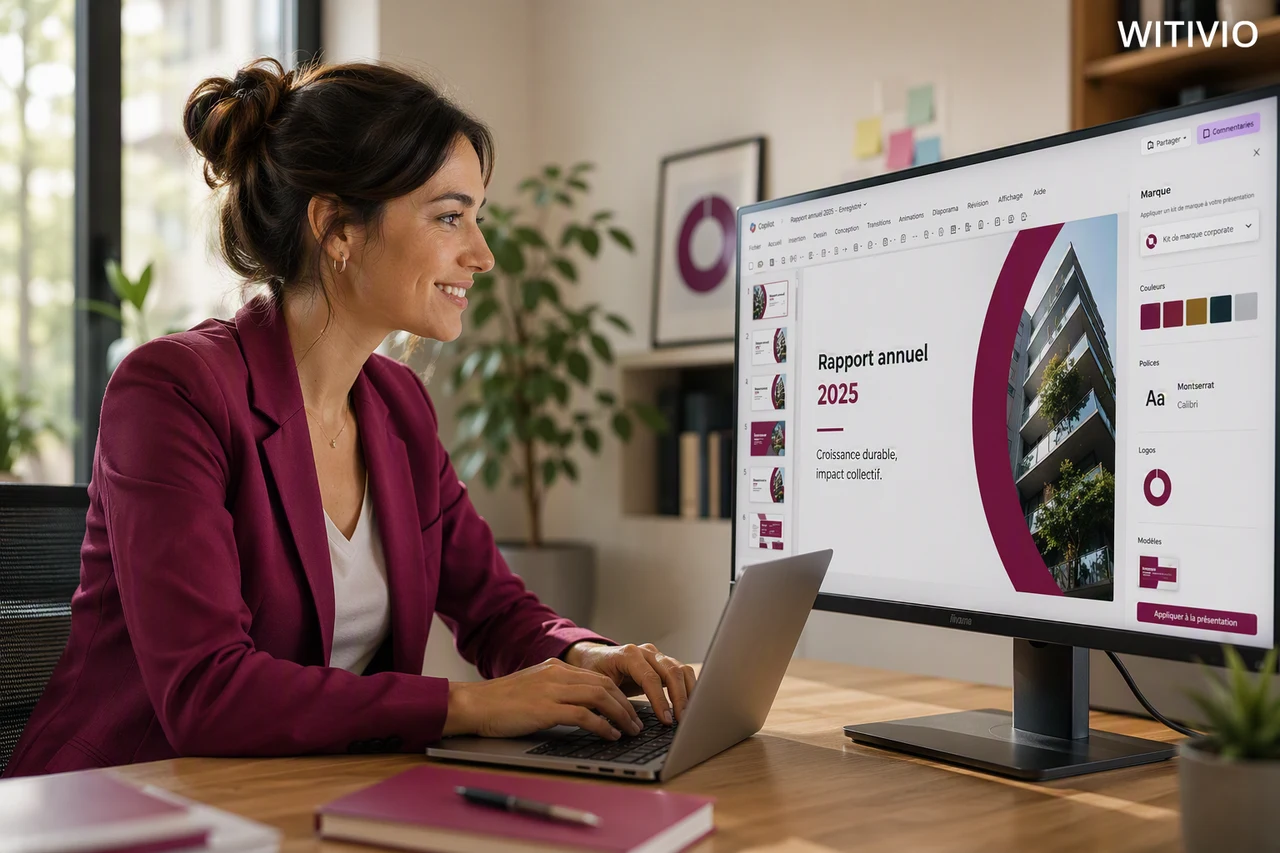
Copilot in PowerPoint finally aligns with the company’s brand guidelines. Microsoft 365 Copilot now includes a Brand Kit: a set of logos, colors, fonts, and templates that the AI applies automatically to every piece of content it generates. The update has been highly anticipated, and for good reason: generating a presentation with Copilot has always been fast, but bringing it up to the company’s visual standards often took longer than creating it in the first place. Changing colors, swapping the logo, adjusting fonts across thirty slides: this cleanup work could easily eat up half a day, for a deck that should have been ready in minutes.
The feature has been available worldwide since late June 2026, and PowerPoint has included a native brand pane since mid-July 2026, letting users select an approved kit directly when generating a presentation with Copilot. This shift turns brand guidelines into a living set of rules the AI applies directly, rather than a document consulted only now and then.
Why This Brand Kit Changes the Game
The core value of this feature is speed combined with compliance. A team can now produce a marketing asset, a client presentation, or an internal document in minutes, with the assurance that it consistently reflects the company’s brand identity: the right colors, the right typography, the right tone, with no manual review or design team involvement required for every single piece of content.
This matters more as generative AI becomes a everyday tool across the company. The more employees generate content with Copilot, the higher the risk of visual drift: everyone works from their own settings, with no shared reference. Without a Brand Kit, that drift lands back on marketing and design teams, who end up reviewing and fixing content after the fact, sometimes after it has already been shared with clients.
A Brand Kit moves that control upstream: brand compliance becomes a property of the generated content itself, rather than an extra approval step. Marketing teams get back the time they used to spend fixing presentations, and can reinvest it in work that matters more than formatting reviews.
How to Create an Official Brand Kit
Creating an official Brand Kit is limited to collaborators designated as brand managers by the IT administrator, and a Microsoft 365 Copilot Premium license is also required. The role assignment can take up to 24 hours to take effect. The steps below follow the official Microsoft 365 Copilot documentation.
This process works the same way whether you use Copilot on the web or the Copilot app installed on your device.
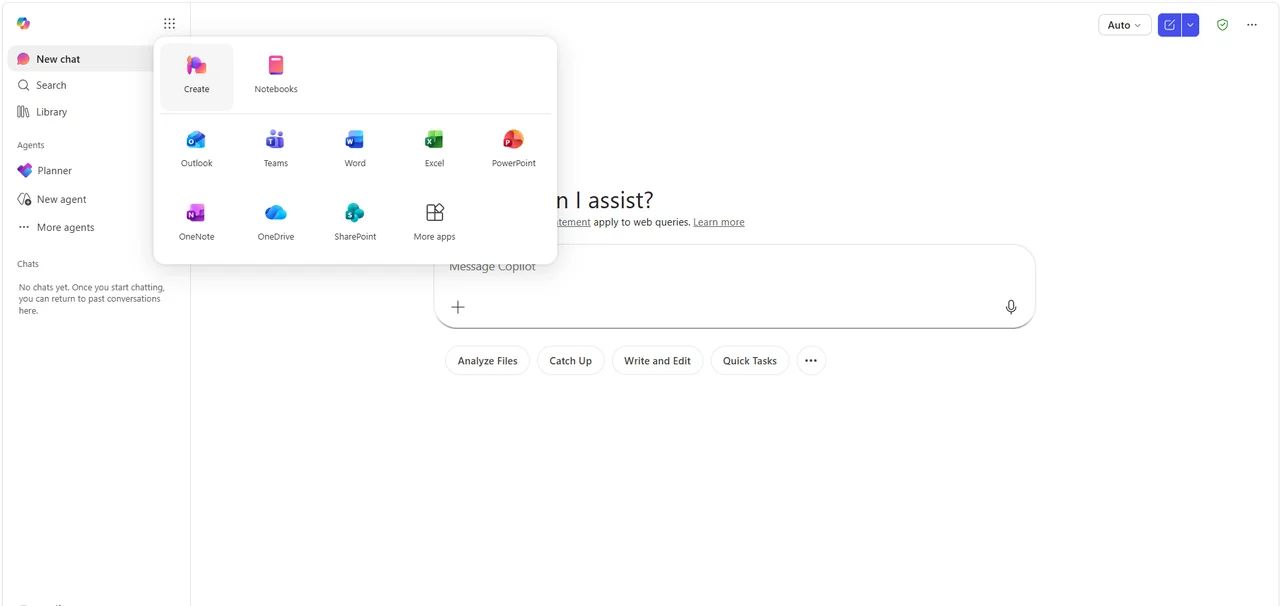
From Microsoft 365 Copilot, click the app launcher, top left (the nine-dot icon), to open the menu, then select Create.
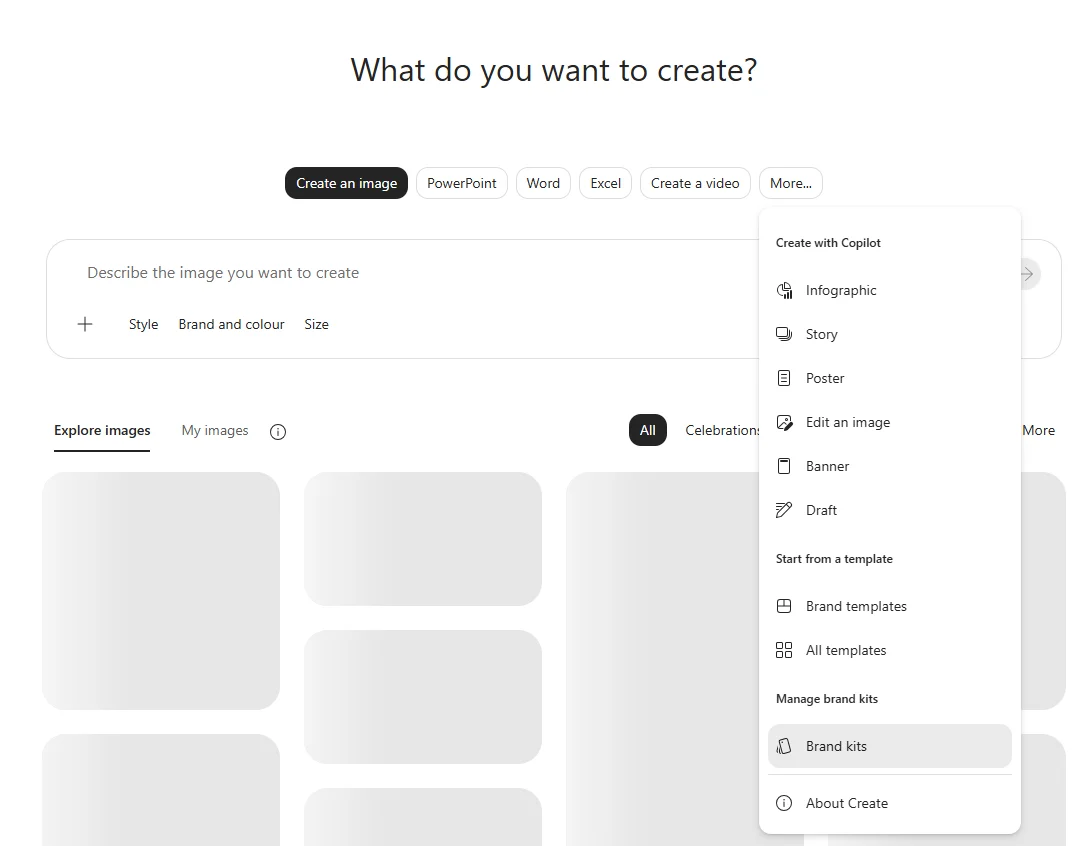
Click More…, then select Brand kits under Manage brand kits.
Complete the elements specific to the company: the logo and its variations, fonts, primary and secondary colors, icons, and brand voice.
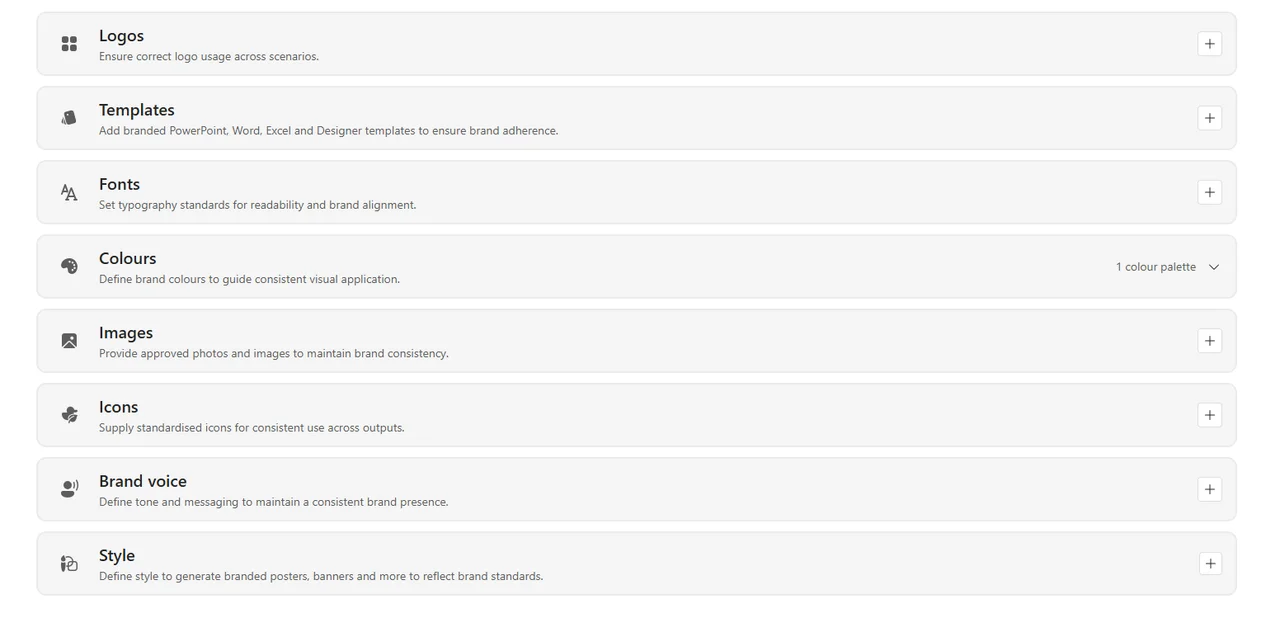
For the logo, it is best to stick to a single logo and its official variations (original version, all-white version, all-black version, and so on), rather than adding every product or sub-brand logo the company owns.
Take the example of a fictional company, Norvia, whose business spans several sub-brands: Norvia Cloud, Norvia Retail, and Norvia Insurance. Two approaches are possible. The first is to align the Brand Kit with the parent company’s identity: only the Norvia logo appears in the kit, excluding its sub-brand logos, so that every presentation Copilot generates stays true to that single identity. The second is to create a separate Brand Kit for each sub-brand, each with its own logo, colors, and templates.
The second approach is recommended whenever the sub-brands have genuinely different visual identities: it prevents a single kit from mixing multiple sets of colors, fonts, and logos, with the visual inconsistency that creates. Nothing prevents grouping every logo into a single kit, but that choice is discouraged for this reason.
Three sections deserve particular attention, since they directly shape the quality of what Copilot produces.
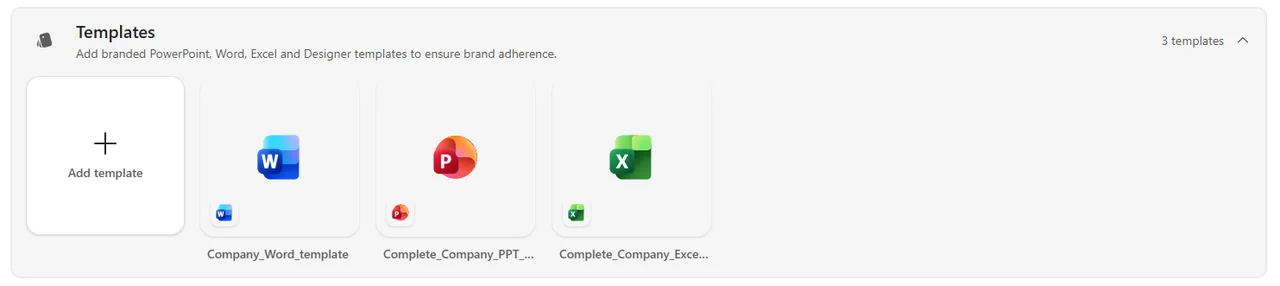
- Templates: it is best to use a single, well-structured, complete Word template and a single, polished, complete PowerPoint template that fully reflects the company’s style, rather than stacking several of each. Excel and Designer templates can be added on top. The reason is simple: when generating a presentation in PowerPoint with a Brand Kit selected, Copilot asks which template to use, and only one can be selected at a time, there is no way to pick several. A single, complete, genuinely on-brand PowerPoint template guarantees that this one choice always produces a result true to the company’s style. Note that the Brand Kit is effectively usable in PowerPoint only today; integration with Word and Excel is still in development at Microsoft and should follow.
- Images: it is recommended to add the full range of photos and visuals that reflect the company’s identity. This library serves two purposes: Copilot draws on it directly to illustrate presentations, and it also informs the generation of new images in the same visual style.
- Style: this section defines, through reference images or a written description, how AI-generated visuals should be composed: framing, mood, the emotions to convey, and consistency with the brand’s overall aesthetic. Unlike the Images section, which supplies existing visuals to reuse, Style guides Copilot when it creates original images, posters, or banners that do not exist yet.
Once every element has been filled in and reviewed, select the publish button to make the official Brand Kit available across the organization:
Publishing at the company-wide level remains restricted to the brand manager role: it is this role, assigned by the IT administrator, that allows an official kit to be made visible and usable by every employee.
How to Roll Out and Use the Brand Kit Day to Day
Once the kit is published, every authorized employee can use it directly, with no extra setup:
- From Microsoft 365 Copilot, select Create, then More… and Brand templates.
- Choose a template: the matching application (PowerPoint, Word, and so on) opens automatically with the kit already applied.
- In PowerPoint, open the Copilot pane and click the + icon next to the prompt box. Select Select brand from the menu, then choose the approved brand kit to use.
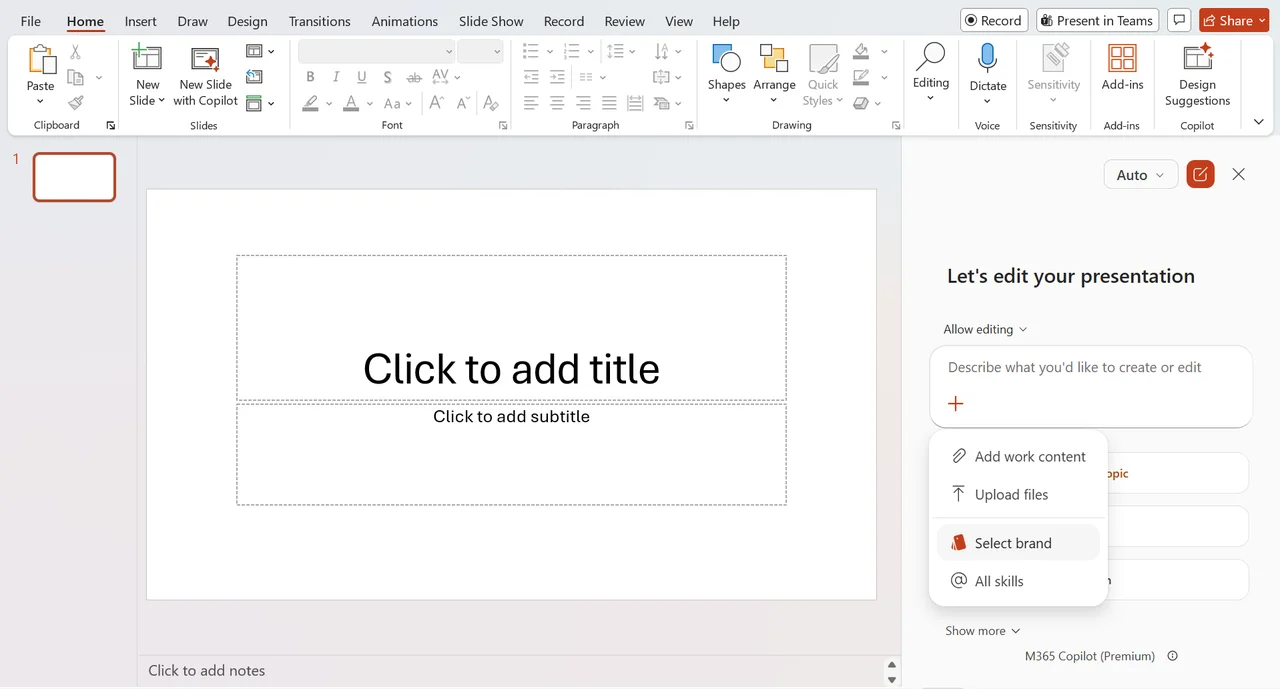
- Describe the presentation to create or edit in the prompt. Copilot then generates the content directly with the right colors, fonts, and visual style from the selected kit.
- Customize the content as needed and save the file.
Brand managers keep full control over updates: any change made to the kit (edits, a new template, a color change) propagates automatically to every employee.
Conclusion
The Brand Kit turns brand guidelines into a tool the AI applies on its own, every time content is generated. Teams gain speed, brand managers keep centralized control, and the company’s visual identity stays consistent at scale.
Witivio helps companies configure their Microsoft 365 Copilot environment, set up brand kits tailored to each entity, and build custom agents and solutions that respect our clients’ brand identity at every step. Have a question about rolling out Copilot in your organization? Our team is available to talk it through.
Contact us → Discover our custom Copilot agents
Frequently Asked Questions
No. This feature requires a Microsoft 365 Copilot Premium license.
Only employees designated as brand managers by the IT administrator. This designation can take up to 24 hours to take effect, and only that person can publish a kit at the organization level.
Today, the Brand Kit is effectively used during content generation in PowerPoint only. Integration with Word and Excel is still in development at Microsoft and should follow.
It depends on the company's structure. If the goal is to stay true to the parent brand's identity, a single kit with its one logo is enough. If sub-brands have genuinely different visual identities, it is recommended to create a separate Brand Kit per sub-brand, to avoid a single kit mixing multiple sets of colors, fonts, and logos.
Witivio helps configure the Microsoft 365 Copilot environment, set up brand kits tailored to each entity, and build custom agents and solutions that respect our clients' brand identity at every step.